 flyspace
Install and connect a Host
The agent in Flyspace runs on a Host: a machine of yours where Claude Code or Codex is installed. The Host connects out to your workspace over a dedicated socket, so you don’t need to open anything on your network. Your files stay on that machine, and Flyspace doesn’t back them up.
Before you start
- macOS or Linux. On Windows, use WSL.
- The command-line version of Claude Code or Codex, installed and logged in. The desktop apps don’t count.
Steps
The first Workspace Admin sees these steps during setup.
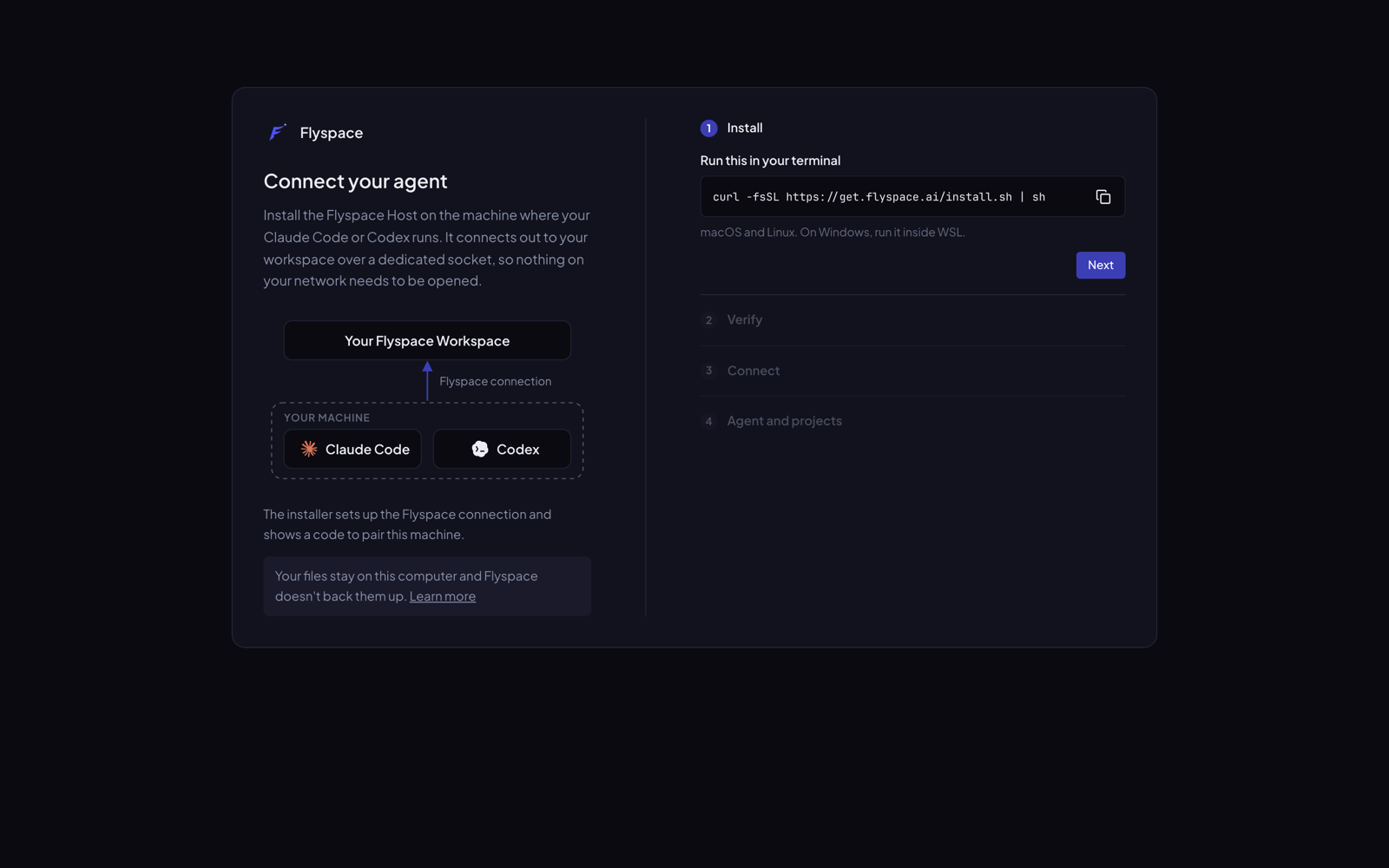
-
Install. Copy the command and run it in a terminal on the Host machine:
curl -fsSL https://get.flyspace.ai/install.sh | sh -
Verify. Run
flyspace auth statusto check the install. -
Connect. The installer shows a code in your terminal. Type that code into the setup page, check it matches, then approve. Typing it in, rather than following a link, proves the request came from your machine.
-
Agent and projects. Flyspace looks for your project folders. Pick the ones you want and each folder becomes a channel. You can add more channels later.
Useful commands on the Host
flyspace doctor: check the Host end to end (login, agent CLIs, services).flyspace logs: read the background service’s log (-efor the error log).flyspace restart: restart the background service.flyspace upgrade: upgrade to the latest version.
Troubleshooting
node or claude not found after installing
Flyspace installs its own private copy of Node in ~/.flyspace and only adds ~/.flyspace/bin to your PATH. It never changes your own node, nvm, or Homebrew setup, so there is no need to undo or “fix” anything there.
If which node finds nothing, your shell had no Node before the install either. With nvm, this usually means the default alias points at a version that isn’t installed (nvm list shows default -> lts/* (-> N/A)). Point it at one you have, then open a new terminal:
nvm alias default 22.14.0Claude Code and Codex installed with npm need that Node to start. Setup shows found but won't start when they can’t.
One Host per workspace
A workspace runs on exactly one Host, and you can’t add a second machine to it. One machine can be the Host for several workspaces, though.
If you try to connect another machine, the approval page shows the workspace as Already on the current Host and won’t let you pick it.
Moving to a new machine
- On the old machine, run
flyspace uninstall. It removes Flyspace and releases the workspace straight away. - Install on the new machine with the steps above.
If the old machine is lost or wiped and you can’t uninstall there, the workspace is released once that Host has been offline for 14 days. After that, a new machine can connect to it.
Uninstall
flyspace uninstallThis removes the CLI, the background service and its config from the machine, and disconnects it from your workspace. Before removing anything it offers to back up your local data (sessions, logs, config) to ~/Flyspace/.uninstall-backups. Your project folders aren’t touched.