 flyspace
Notifications and the mobile app
Flyspace works in the browser and can be installed as an app (a PWA) on your desktop or phone, with its own window and icon.
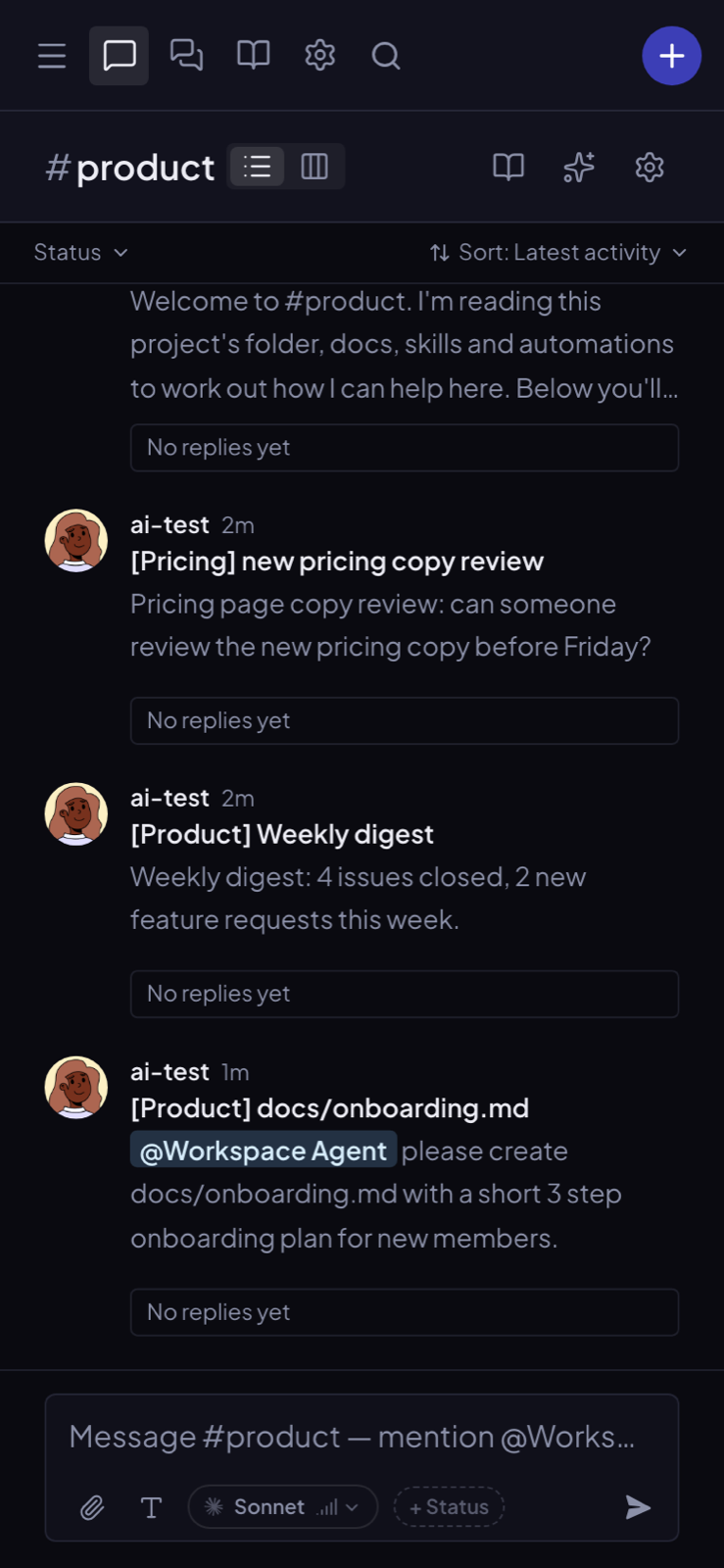
Install the app
- During setup, the last step offers Install Flyspace.
- On desktop Chrome or Edge, use the install icon in the address bar.
- On iPhone or iPad, open your workspace in Safari, tap Share, then Add to Home Screen.
Turn on notifications
- Click your name at the bottom of the sidebar and choose Your settings.
- Turn on Notifications.
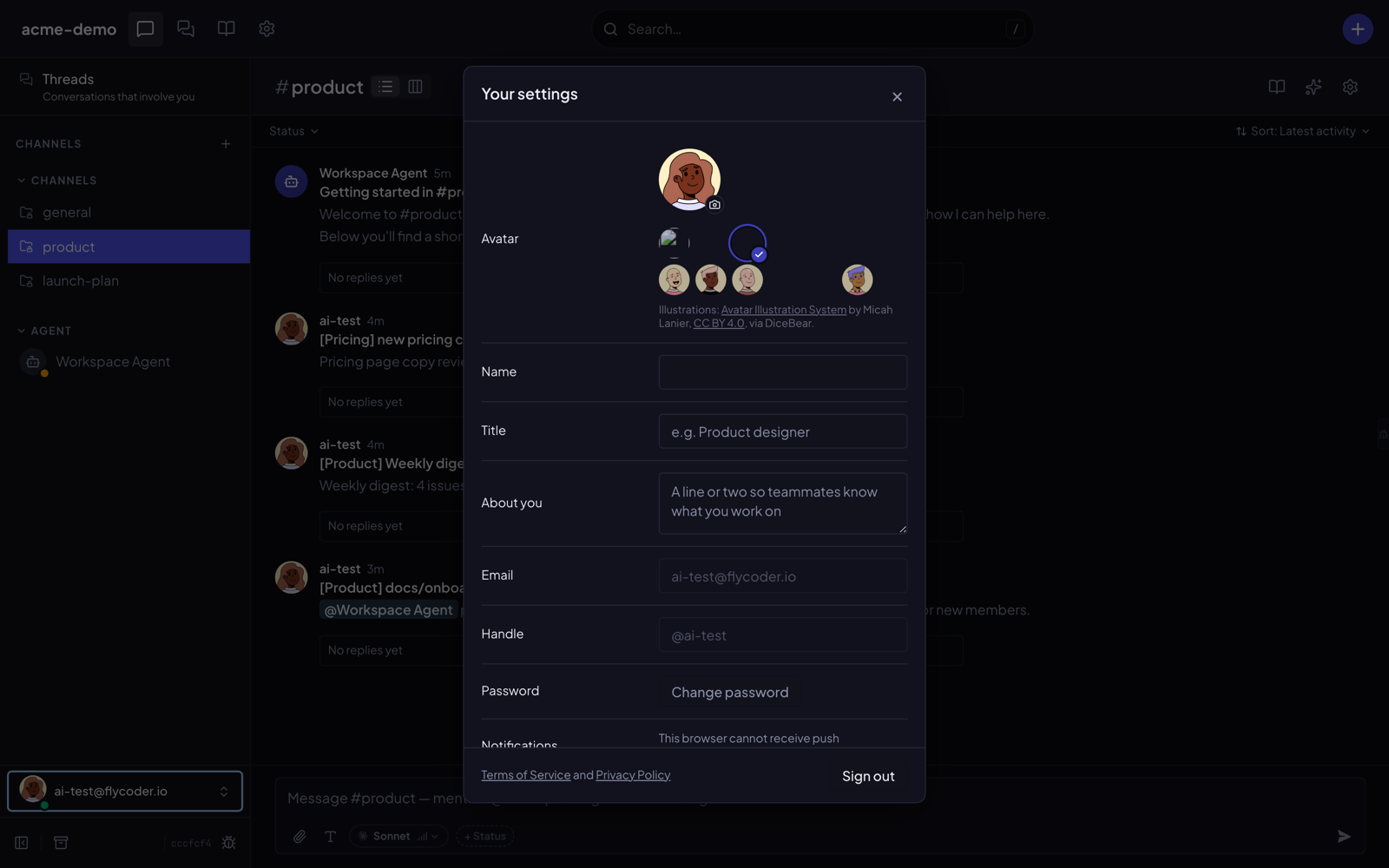
Notifications are per browser: turn them on in each browser or device you use.
- On iPhone and iPad, add Flyspace to your Home Screen first. Safari only allows push notifications for installed apps.
- If the setting says notifications are blocked, allow notifications for your workspace’s site in the browser settings, then try again.