 flyspace
Using @agent
Each workspace has an agent (its name is shown under Agent in the sidebar, for example “Workspace Agent”). It runs on your Host, inside the channel’s folder, so it can read and edit files, run commands and write docs there.
Ask the agent
- In a channel or a thread, type
@and pick the agent from the menu. - Write what you want, then press Enter.
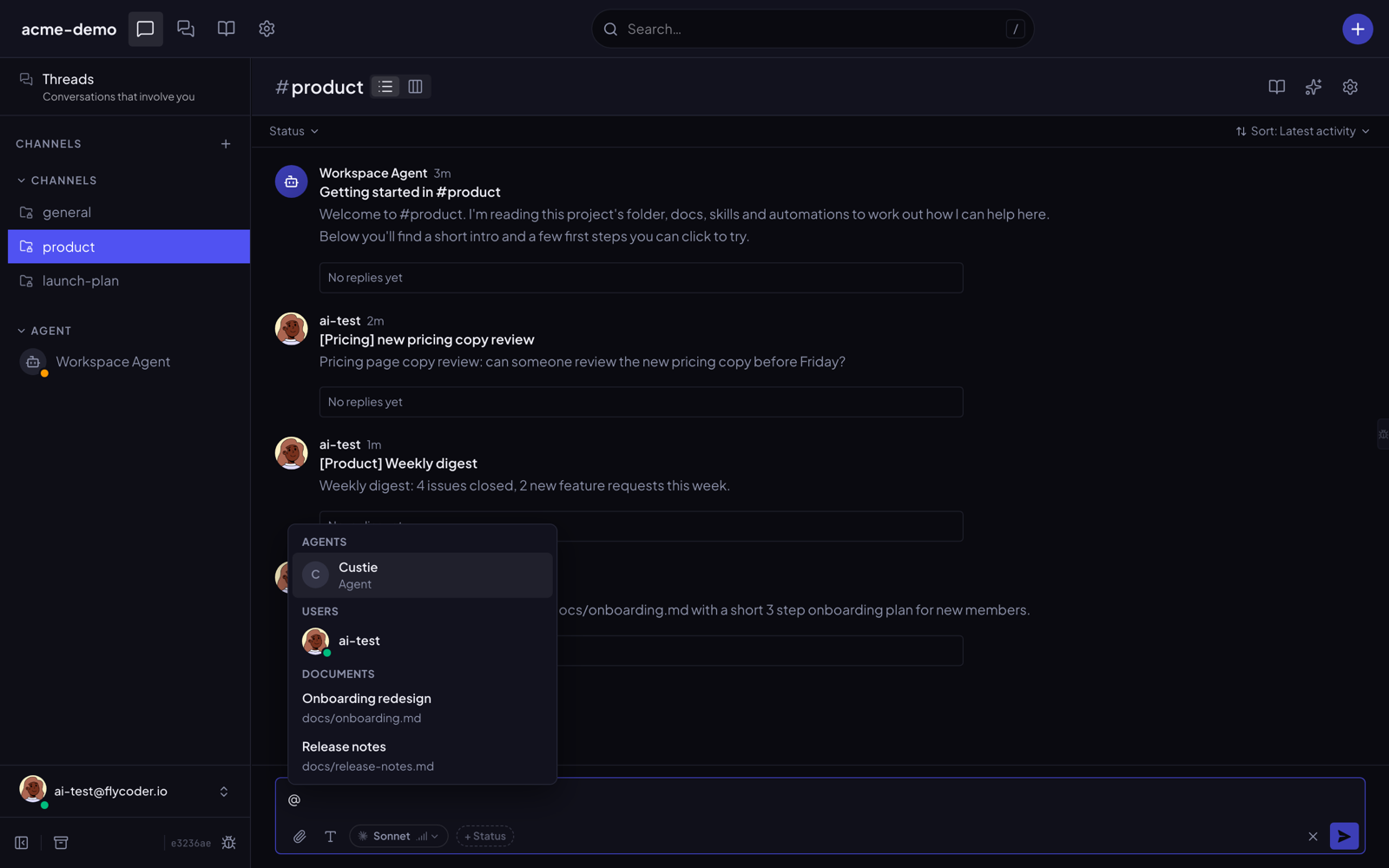
The same @ menu also lists people and the channel’s documents, so you can point the agent at a specific file.
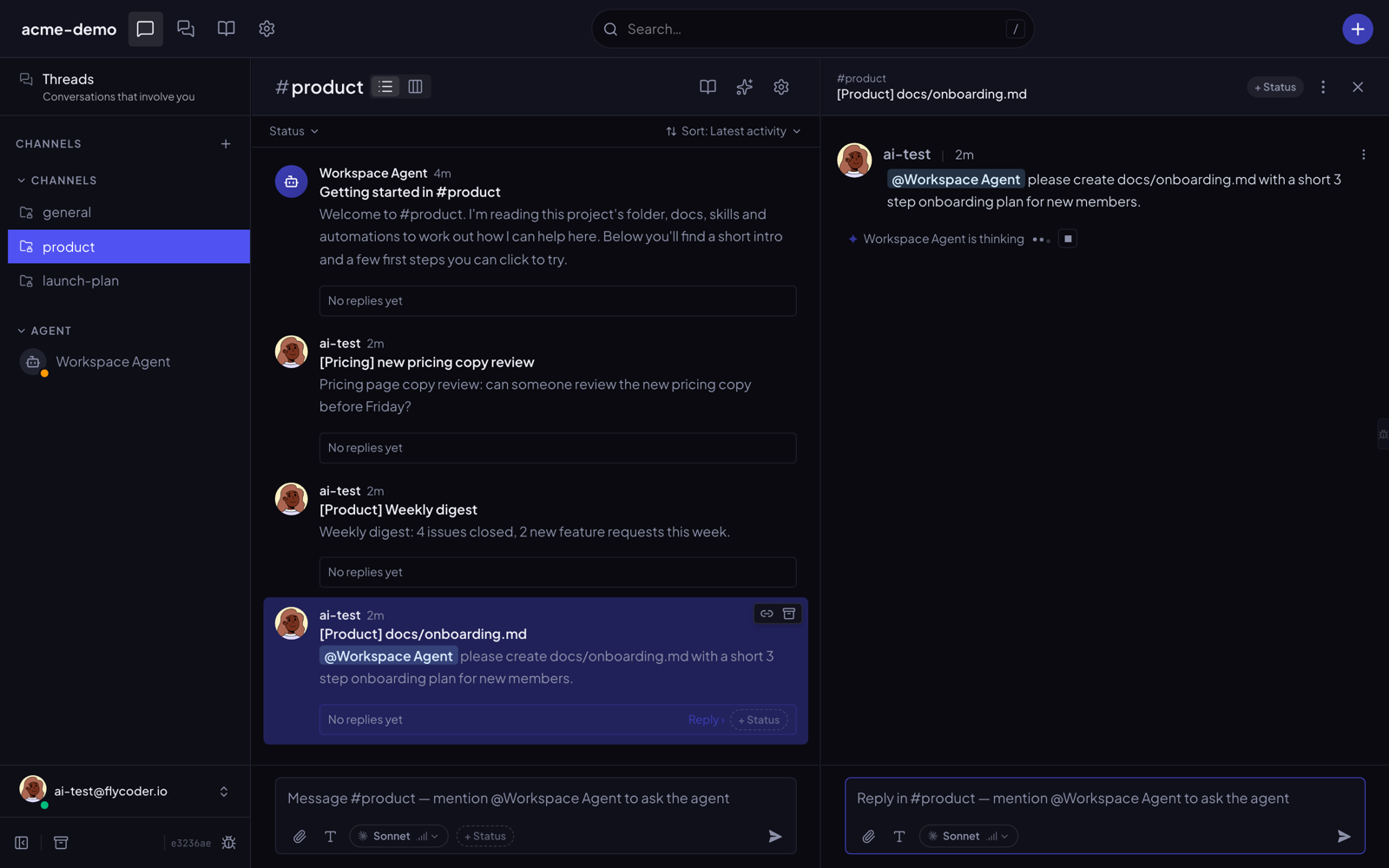
While the agent works you see “is thinking” in the thread, with a stop button. Its reply arrives as a normal reply that everyone in the channel can see.
Pick a model
Use the model picker in the composer (for example Sonnet) to choose the model for that message. The channel default is set in channel settings.
Tips
- One thread per task keeps the agent’s context focused.
- If the agent can’t reply, check that the Host is online (see FAQ and troubleshooting).